Questions or stuck on a step? Write to info@otavation.com or reply to your account manager — we’ll walk you through it.
Google Analytics 4 — how to grant access
To let our team analyse your traffic, conversions and campaign performance, please add Otavation as a user of your Google Analytics 4 account. It takes about two minutes. Follow the steps below — every step has a screenshot with the button you need highlighted in red.
Before you start
- Email to add:
analytics@otavation.com - Role to select: Editor
- You must be signed in with a Google account that has the Administrator role on the GA4 account — only administrators can add users.
- Time needed: about 2 minutes.
Log in to Google Analytics
Open analytics.google.com and sign in with the Google account that owns or administers your website’s analytics. If you have several accounts, use the account switcher at the top left (All accounts) to pick the account for the website we work on.
Open the Admin section
In the left-hand menu, click Admin (the gear icon at the bottom left).

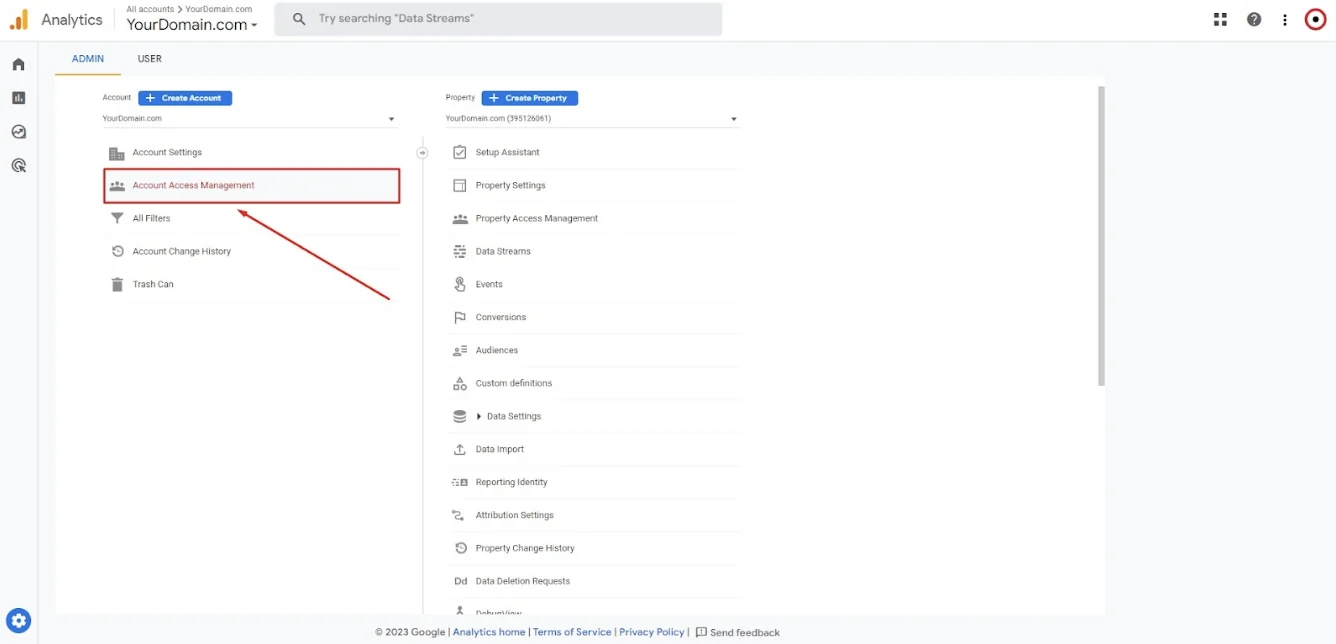
Click Account Access Management
In the Account column, click Account Access Management. Granting access at account level gives us access to every property in the account, so you won’t need to repeat this for each property.
In the newer interface the same item is called Access management and sits under Account settings on the Admin page.
Press the blue + button to add users
A panel with the list of current users opens. Click the blue + button in the top right corner and choose Add users.

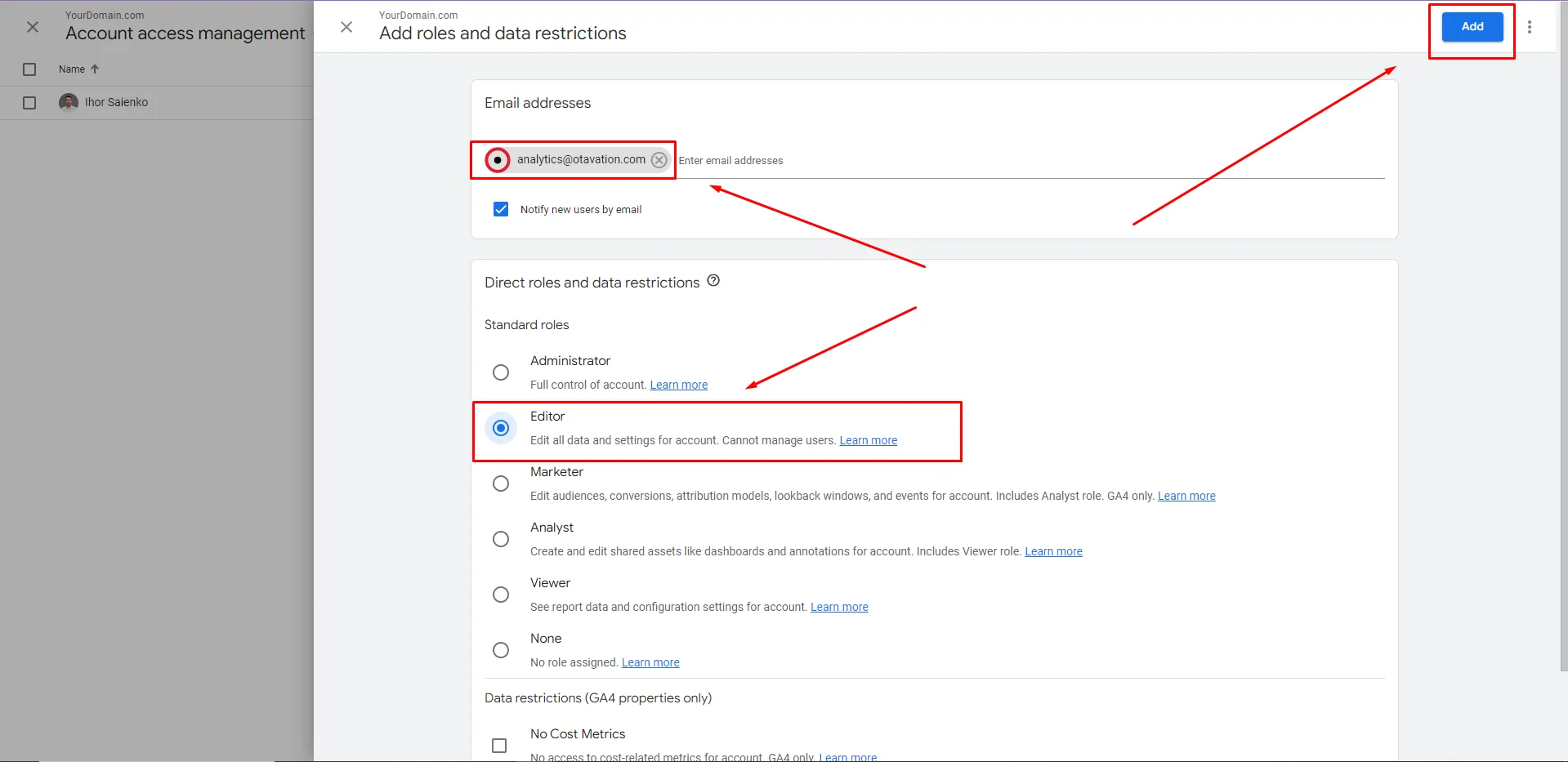
Enter our email, select Editor and press Add
In the Email addresses field, enter analytics@otavation.com and press Enter. Leave Notify new users by email ticked.
Under Direct roles and data restrictions, select Editor — it lets us configure events, conversions, audiences and reports, but does not allow us to manage users. Leave the data-restriction boxes (No Cost Metrics / No Revenue Metrics) unticked. Then press the blue Add button in the top right corner.
Check that access is granted correctly
You will return to the list of users. Make sure analytics@otavation.com appears with the role Editor, then close the panel with the ✕ in the top left corner.

Well done! 🎉 GA4 access has been successfully granted.
Let your Otavation account manager know that access is in place — we will confirm on our side as soon as the account shows up.
Frequently asked questions
I don’t see Admin or Account Access Management
Your Google account doesn’t have the Administrator role on this GA4 account. Ask the person who created the analytics account (often your web developer or a previous agency) to add us, or to make you an Administrator first.
Can I give access to one property only?
Yes. In Admin, use Property Access Management in the Property column instead and follow the same steps. Account-level access is still preferable: it covers new properties and account-level settings.
Why Editor and not Administrator?
Editor is enough for all of our analytics work — configuring events, key events (conversions), audiences, Google Ads links and reports. It does not let us add or remove users, so you keep full control of who has access.
How do I remove access later?
Open the same Account Access Management panel, click the three dots ⋮ next to analytics@otavation.com and choose Remove access.